The FaxAgent Dashboard
FaxAgent Dashboard
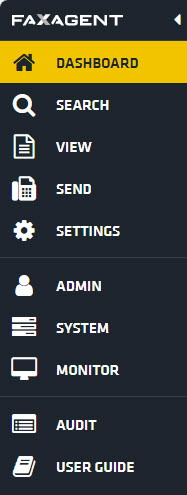
After logging in, the FaxAgent Dashboard is displayed. The top row of icons provides quick access to the primary FaxAgent features, including:
- Search to view inbound and outbound faxes
- Sending a fax
- Managing fax settings
- Reviewing billing information
- Axacore website
- Online User Guide
Additional sections on the dashboard display your general account information, an activity summary, and a list of recent faxes sent and received, including their current status. This centralized view allows you to quickly monitor activity and access commonly used functions.
Menu Items
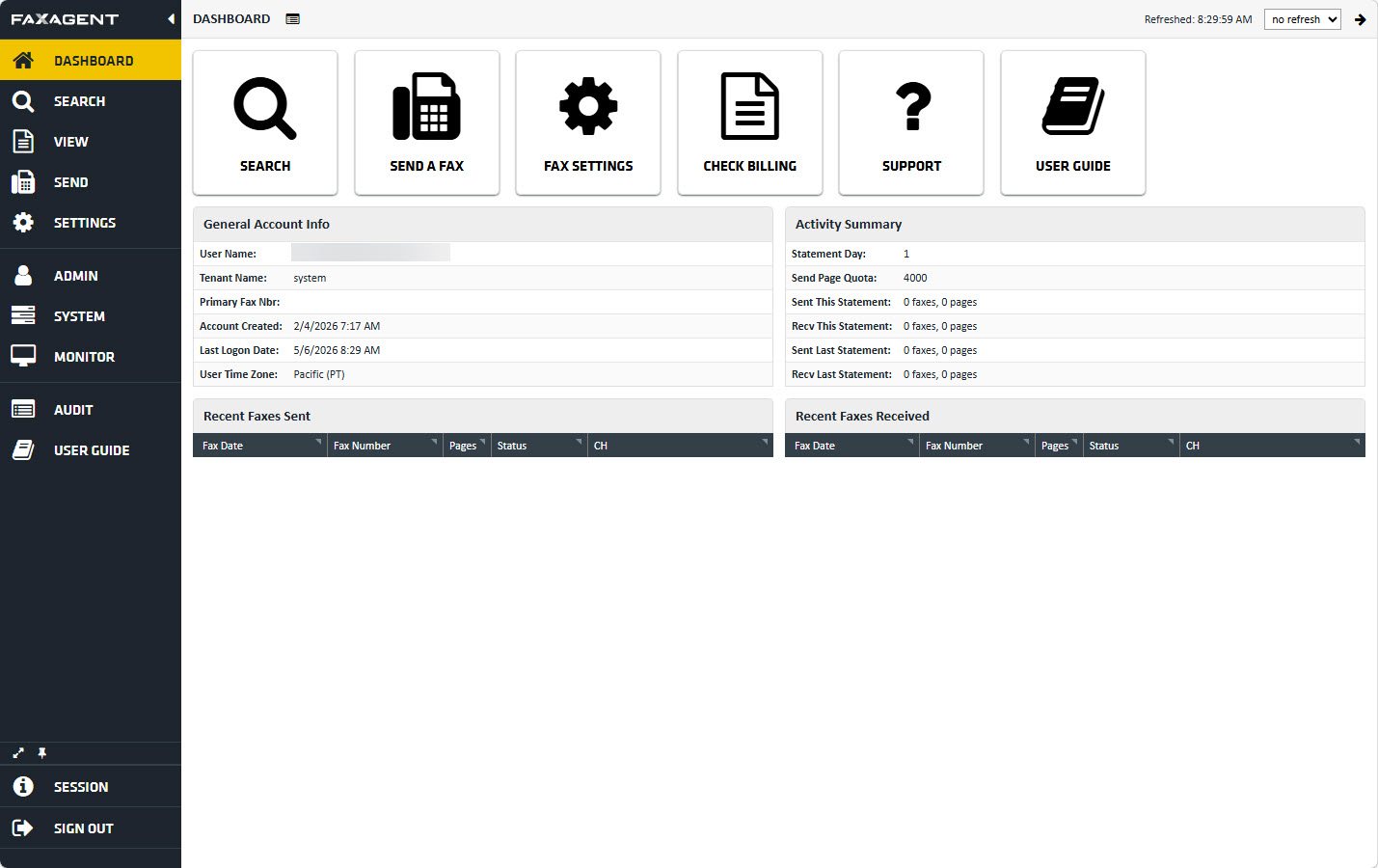
The side and top menus provide access to virtually the same options, so you can use whichever menu you prefer.
- SEARCH – Search for a specific fax using various search criteria.
- VIEW - View inbound and outbound faxes
- SEND A FAX – Provides step-by-step instructions for sending a fax, including adding a cover page and attachments.
- FAX SETTINGS – Opens Fax Settings, where you can view and manage operational settings, including Profile, Folders, Password, Notifications, Permissions, and Billing.
- UPDATE PROFILE – Opens Fax Settings directly to the Profile tab.
- CHECK BILLING – View your account billing information, usage summary, and usage limits.
- SUPPORT – Provides information on how to obtain support for FaxAgent.
- USER GUIDE – Opens the FaxAgent User Guide in a new window.
General Account Info/Activity Summary
These two sections are read-only and contain general information about your account and your account's activity
Recent Faxes Sent/Received
These sections contain your recent sent and received faxes. You can double click on any of the items to view the fax in question.
Dashboard Toggle
Above the SEARCH button is a togggle button for the Dashboard 
When you click the toggle button, the buttons appear much smaller, allowing you to see more info on the rest of the screen (e.g. sent and received faxes)

Click the toggle button again to return it to the large icons
Screen Refresh
You can set the screen to refresh periodically in order to see new incoming faxes that appear on the dashboard

From the dropdown above, you can set the screen to refresh every 5,10, or 15 minutes, or not refresh at all. Click the arrow button to the right of the dropdown to maually refresh the screen.
Side Menu
The side items generally mimic the top icons, except for the two at the bottom
SESSION - Shows you information about your session. This is for informational purposed only
SIGN OUT - Signs you out of the application
Dock Buton - At the top of the left side menu there is a dock button which will doc the left side menu and show icons in place of the menu items
This is where the DOCK button is: 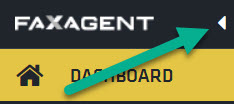
And this is the menu docked: