Manage Users
The Manage Users sections allows the FaxAgent Admin to administer user information, security, billing and other information to assure users are set up in a way for the tenant to run smoothly. The User Grid below has allof the basic information. You can search for a specific user with the user search feature at the upper right of the screenshot, and perform actions on various users from the action menu on the upper left.
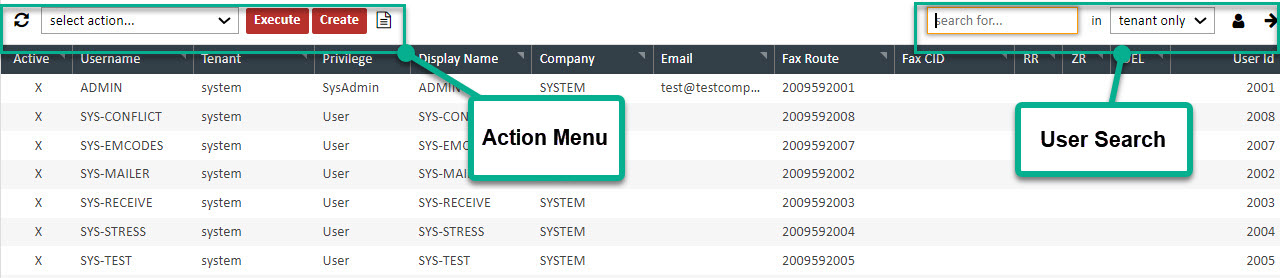
User Actions
From this dropdown you can perform a number of actions for a user. To do this:
- Highlight the user in the grid
- Select the action from the dropdown
- Click Execute
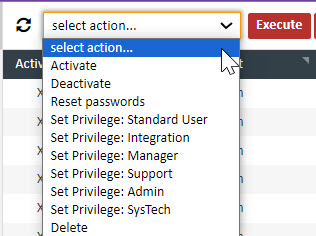
| Action | Description |
| Activate | Activates user |
| Deactivate | Deactivates user |
| Reset Passwords | Opens password reset dialog so you can reset the password |
| Set Privilege: Standard User | Sets the privilege of the user to User |
| Set Privilege: Integration | Sets the privilege of the user to Integration |
| Set Privilege: Manager | Sets the privilege of the user to Manager |
| Set Privilege: Support | Sets the privilege of the user to Support |
| Set Privilege: Admin | Sets the privilege of the user to Admin |
| Set Privilege: SysTech | Sets the privilege of the user to SysTech |
| Delete | Deletes the user |
Creating a New User
To create a new user, click the CREATE button. The following dialog will appear. Fill it out with all of the relevant infiormation. All required fields are in bold.
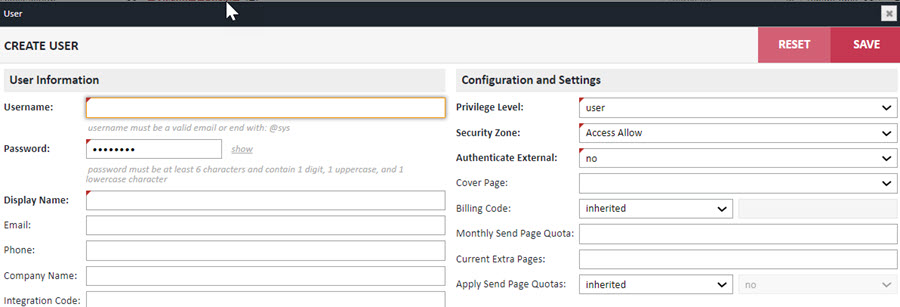
| Field | Description |
| User Information | |
| Username | The user's username they will log into the application with |
| Password | The system auto-generates a password that you can see when you click the show button. You can then change it needed. |
| Display Name | The name of the user which will be displayed in the application |
| The user's email address | |
| Phone | The user's phone number |
| Company Name | The company name of the user |
| Integration Code | Leave this blank for now |
| Configuration and Settings | |
| Privilege Level | The security/privilege level for this user |
| Security Zone | The security zone for the user, if any. See instructions on security zones in this document |
| Authenticate External | Leave this at "no" |
| Cover Page | The default cover page for the user |
| Billing Code | The user's billing code, if any |
| Monthly Send Page Quota | The user's monthly quota of outbound fax pages |
| Current Extra Pages | Any extra pages the user sent in the month |
| Apply Send Page Quota | Interhited/User Set Yes/No to actually apply the quotas, which will stop the user from sending any more faxes if they go over quota |