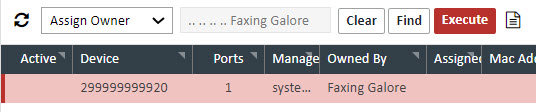
FaxBridge Management
FaxBridge Management Grid
The FaxBridge Management screen, available for System Tenant and Reseller Tenant Admins only, contains a list of all assigned faxbridges for your tenant and sub-tenants. From this screen, FaxAgent Admins have control over activation, ownership, and tenant management of all FaxBridges for tenants under their control.

FaxBridge Management Actions
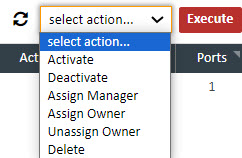
You can perform several management actions on FaxBridge devices
| Action | Description |
| Activate | Activates the FaxBridge for use in FaxAgent |
| Deactivate | Deactivates the FaxBridge in FaxAgent |
| Assign Manager | Assigns the tenant managing the FaxBridge, who assigns ownership |
| Assign Owner | The tenant assigned to this FaxBridge (assigned by the Manager) |
| Unassign Owner | Removes ownership of a FaxBridge |
| Delete | Delete the FaxBridge from the system |
To perform an action:
- Highlight the row for the device you want to perform the action on
- Choose the action from the dropdown menu (see below for how to search for the device)
- Click Execute
Using the Search Function in the Actions Menu
For the Assign Manager and Assign Owner options in the actions menu, you will have to search your option before you click Execute. To perform this search:
- Highlight the FaxBridge device you want to perform the action on. You may need to use the search function at the upper right of the screen
- Once you've found and highlighted the FaxBridge you want you want, choose on of these options (e.g. assign Owner) from the actions menu. The following screen will appear. Click FIND. If you already see the name of the user you're looking for, skip to step 4.

- In the search dialog that appears, enter the name of the tenant and click FIND
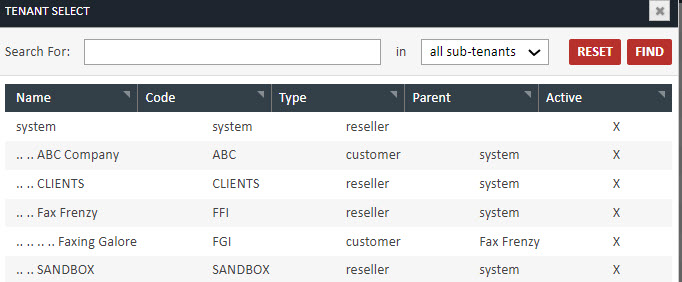

- In the search results, double-click the row of the tenant you want. The name will appear in the field next to Assign Owner


- Click Execute. Your action is complete