Tenant List
Tenant List Grid
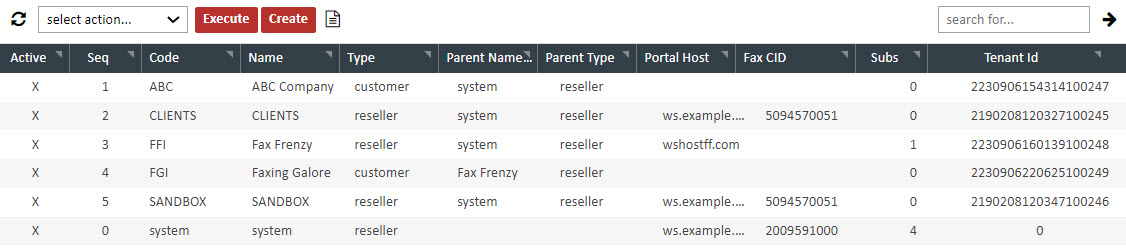
Tenant List Grid list all of the tenants under your control, including your parent tenant and all sub-tenants. System Administrators can perform several actions related to tenants from the menu options at the upper left of the screen. These actions are listed below.
Tenant Actions
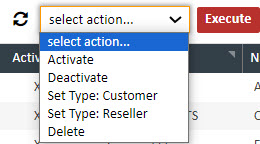
The actions menu list five options you can perform for a tenant that has already been created. They are:
| Action | Description |
| Activate | Activates a tenant |
| Deactivate | Deactivates a tenant |
| Set Type: Customer | Sets the type of tenant to "Customer" |
| Set Type: Reseller | Sets the type of tenant to "Reseller" |
| Delete | Deletes the tenant from the grid |
To perform an action for a tenant:
- On the tenant list grid, highlight the tenant you want to perform an action on
- From the actions menu, choose the action you want to perform
- Click Execute
Creating a New Tenant
To create a new tenant, use the following steps:
- Click the Create button at the top of the tenant grid. The following dialog will appear
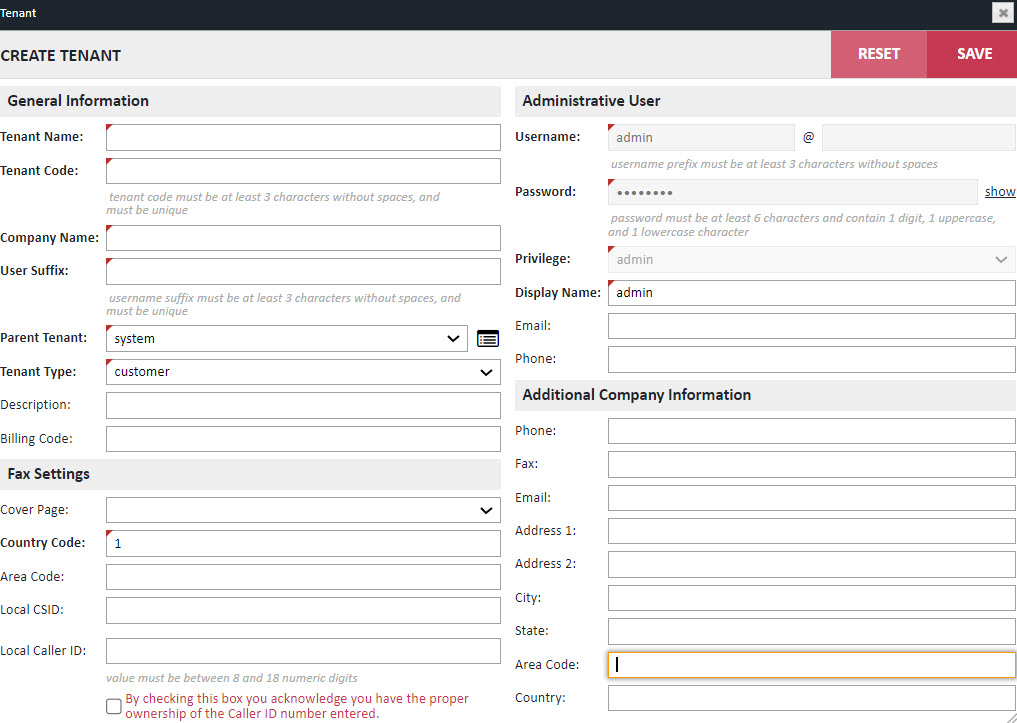
- Fill in the following fields. Fields in bold are required.
Field Name Description General Information Tenant Name The name for your tenant Tenant Code Your tenant code. This must be at least 3 chracters with no spaces. Company Name The name of the company owing the tenant User Suffix Usually the same as tenant code but can be different. This serves as part of the username for any new users so they know what tenant they are logging in to. Parent Tenant The parent tenant of this one Tenant Type Either "Reseller" - which can create new sub-tenants for their customers, or "Customer" - the end user Description Any added description for this tenant Billing Code Billing code - if any Fax Settings Cover Page Choose the default cover page for this tenant from the drop down Country Code Required - the default country code for this tenant. Area Code The main area code for this tenant Local CSID Your CSID (Called Subscriber ID). See FaxAgent Customer Support to get this information Local Caller ID The local caller ID assigned to this tenant Administrative User User Name @ The Admin user name is always defaulted to admin@usersuffix Password Click the show button to see the default password assigned. You can change this password after you save your tenant settings. Privilege Defaulted to admin for the admin user Display Name The name for this user displayes in the application Email The email address for this user Phone The phone number for this user Additional Company Information Phone Company phone number Fax Company fax number Email Company email address Address 1 Street Address Line 1 Address 2 Street Address Line 1 City Company City State Company State Area Code Area code for your company Country Country for the tenant