Delivery Templates
Delivery Template Grid
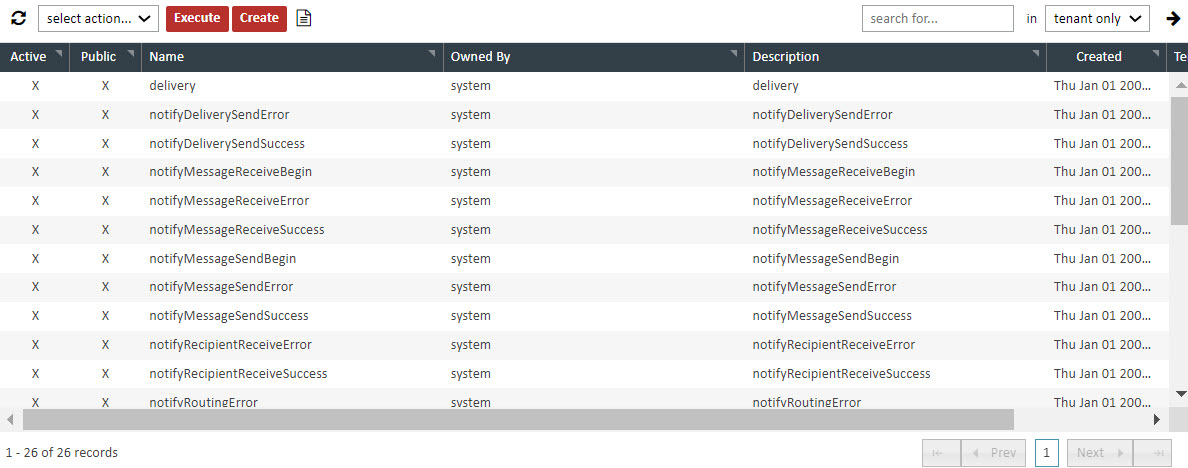
A delivery template is a predefined message used to notify users of a FaxAgent event. They can be used for a number of reasons such as fax send status, routing issues, quota warnings, account creation, and more. FaxAgent comes out of the box with over 25 default messages to choose from, but you can create your own or modify an existing template to suit your needs.
Delivery Template Actions
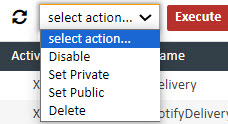
There are a few actions users can choose for an existing delivery template, they are:
| Action | Description |
| Disable | Disables a delivery template from use so child tenants cannot use it |
| Set Private | Sets the delivery template to private. Sub-tenants will not see it |
| Set Public | Sets the delivery template to public. All tenants will see it |
| Delete | Deletes the delivery template and removes it from the grid |
To perform an action on any delivery template:
- Highlight the appropriate row on the grid
- From the actions menu, choose the action you want
- Click Execute
Creating a New Delivery Template
- Click Create at the upper left of the grid. The following dialog will appear.
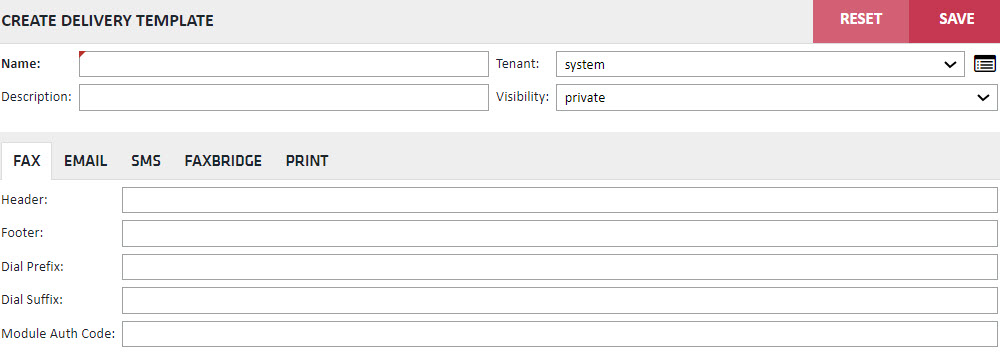
Enter the information for the header
Action Description Name The name for your template Description Any additional descriptive information you want to add Tenant The specific tenant template is for. Visibility Public (all can see it), Private(only the creator can see it), Disabled
- You can create delivery templates for sending by fax, email, sms, faxbridge, and print. Email and SMS are the most popular types. You can also use tokenated information for the templates. See the section on tokens to find out more. Click the tab for the option you want and fill out the appropriate information.
- FAX
Field Description Header Header information Footer Footer information Dial Prefix Dial prefix - if any Dial Suffix Dial Suffix - if any Module Auth Code Use the token $$MESSAGE.FAX_MODULE_AUTHCODE$$ to populate the right code - EMAIL
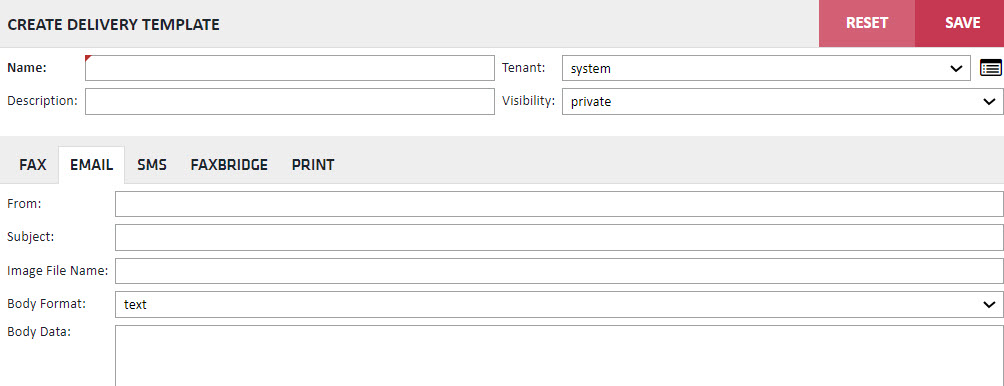
Action Description From Option for token: $$CONFIG.GENERAL.XMS_RESELLER_APPNAME$$ Subject Email subject. Use token in existing template if you want Image File Name N/A Body Format text or html Body Data The body of the email formatted in the way defined in the field above - SMS
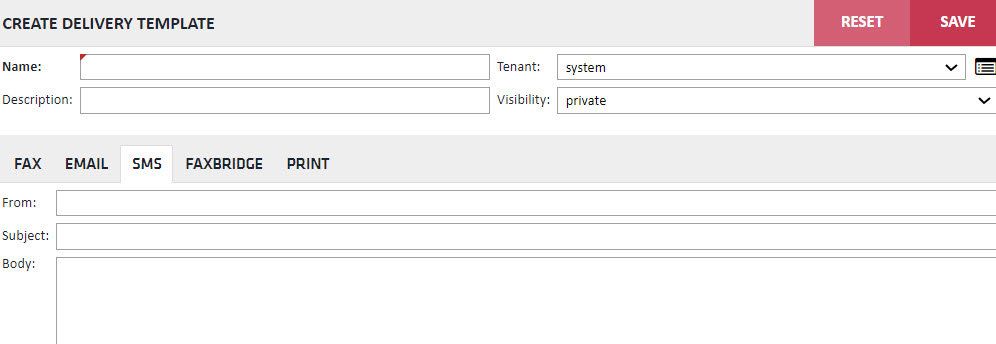
Action Desctiption From Option for token: $$CONFIG.GENERAL.XMS_RESELLER_APPNAME$$ Subject Subject of the sms Body Any information for the body. See default templates for good options - FAXBRIDGE
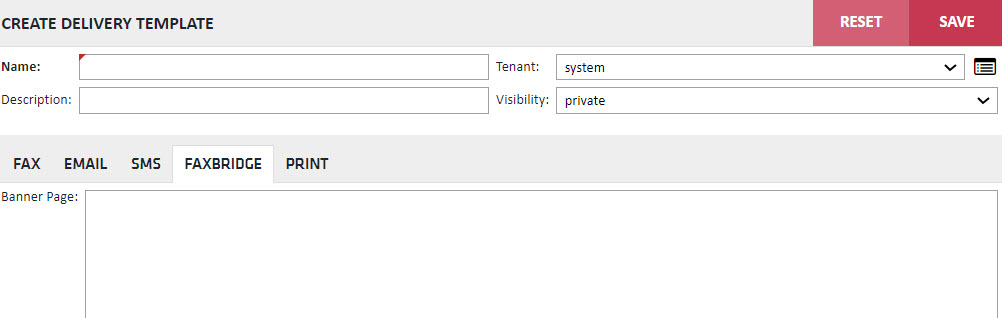
Enter text information for the banner page. See default templates for good options. - PRINT
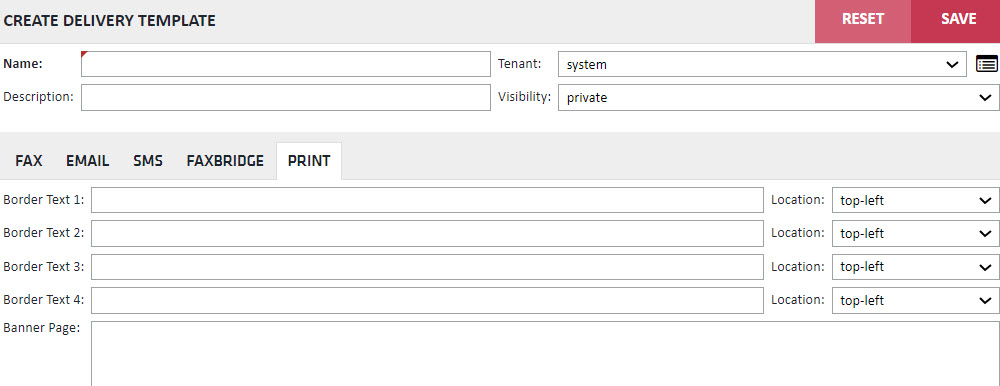
- Enter text information for the this page. See default templates for good options.
- FAX
- When you are done, click SAVE