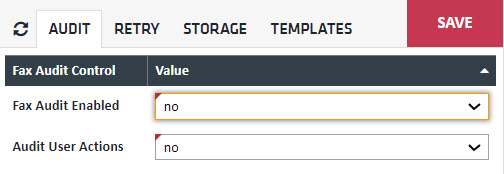
Admin
There are two important parts to this section that you will need to understand to properly administer a tenant. Please read both sections carefully before you proceed.
- Searching for a Tenant
- The Admin Will Look Different For Different Tenants
Before changing any settings in the Admin, you must ensure you are connected to the correct Tenant.
Searching for a Tenant
- To search for a Tenant, either select the tenant from the drop down box, or click the Tenant Search button to the right of the dropdown
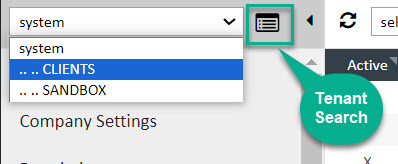
- If you click the Tenant Search Button, a search dialog will appear. Enter your search criteriam then click FIND.
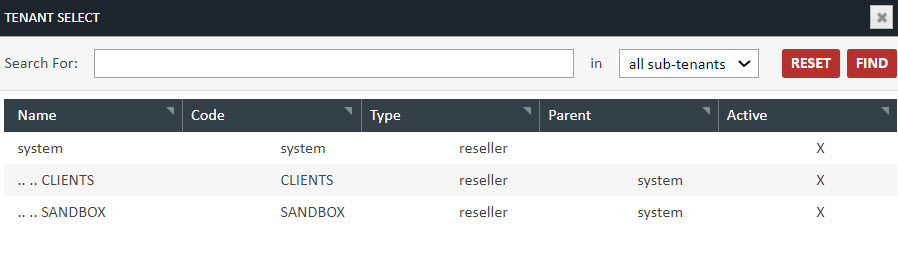
- Double click the row you want and the settings for that tenant will appear
The Admin Section Will Look Different For Different Tenants
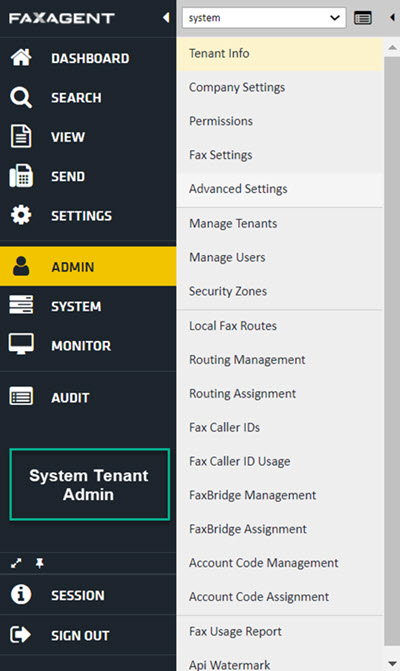
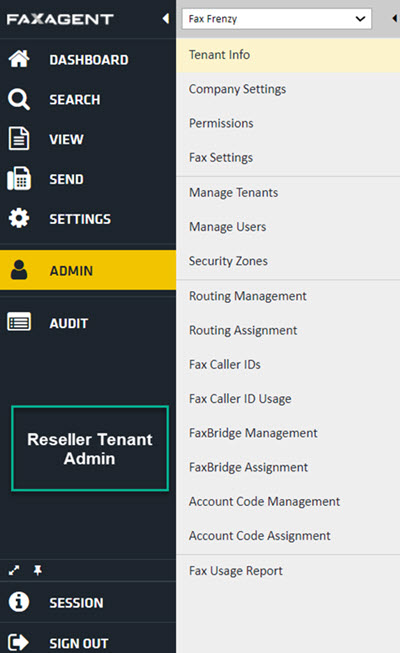
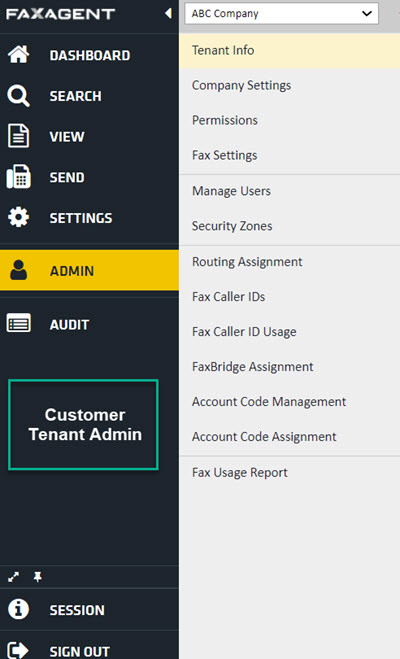
Because there is differnt functionality for the different tenant types, the Admin section for those tenants will look different. Here is how each tenant admin section will look:
|
System Tenant Admin
|
Reseller Tenant Admin
|
Customer Tenant Admin
|
 |
 |
 |
Admin Screens Also Look Different
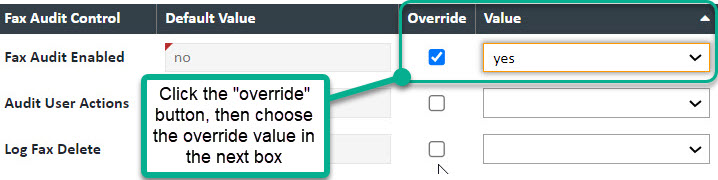
Many Admin screens will look different depending if you are on a parent tenant or a sub-tenant. A system tenant has one set of values to choose from and those values will function as the default values for their immediate sub-tenants. These default values can be overridden by checking the "Override" checkbox and entering the override value in the field to the right.
All sub-tenants will have default values from their parent tenant's Default Value (if not changed at the parent tenant) or the parent tenant's override value (if overridden at the parent tenant)
|
System Tenant Tables (Values function as default values for immediate sub-tenants) |
Reseller and Customer Tenant Tables (Tenant Admin can override settings from Parent Tenant) |
|
|
 |