Searching For Faxes
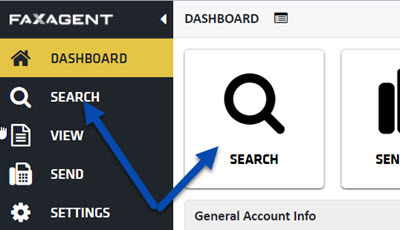
Searching for faxes can be done from both the top and side menus and would be done if you don't see the fax you want on the dashboard. To search for a fax, click the SEARCH icon
- Click on either seach icon from the FaxAgent dashboard
- From the Search screen, click the "plus" icon at the top to expand the search options

- You will now see all search criteria. FaxAgent Admins will see more search criteria, but for users, this is what you will see.

- The following describe the search criteria options
Field Description View All Faxes This dropdown gives you many options. You can search incoming and outgoing faxes, successful and failed faxes, and a number of other options to narrow your search Date/Time This date field will search from the date you choose, back to the beginning of that month. You can also click on the calendar and clock icons for easier choosing of date/time. Future versions will have "From" and "To" date sfields from which to search User You will only be able to search your own faxes unless you have rights to search others' faxes. Click on the "User Search List" i icon to the right of the box to see a list of users you can search on. Select Filter Type/Folder If you've set up Filters in your profile, select the type and/or folder you want to search Fax Number/Criteria This field and the field next to it allow you to search on a number of specific fax fields, such as fax number, message numbner, and a number of other fields. Choose your criteria option and then the criteria in the "--enter criteria--" box. Revert Icon - 
Resets the search criteria Execute Icon - 
Executes the search criteria. You see the results in the search results section Report Icon - 
Creates a .csv report of the search results - Once you have entered your search criteria, click the EXECUTE button. The search results will appear at the bottom
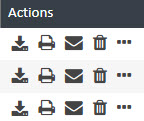
- From the search results you will see a number of icons in the Actions column. These are number of things you can do to a fax, or information you can find out about the fax. These icons are:
- Download a fax
- Print a fax
- Forward a fax
- Delete a fax
- More info - More info about a fax
NOTE: See the Fax Actions section of the documentation for a detailed instructions on these items
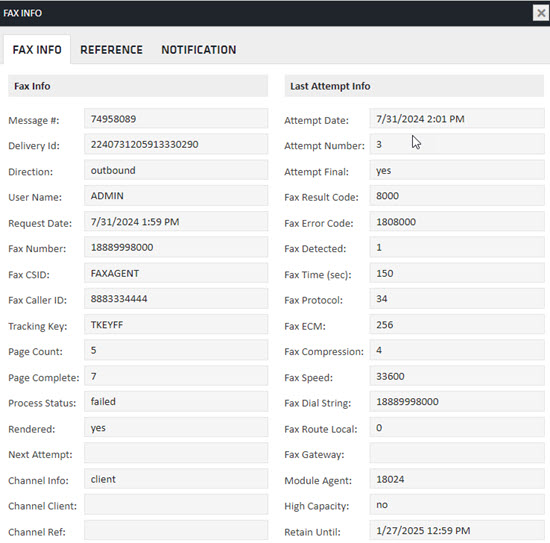
7. More Info- Fax Info - This screen displays all of the details of the fax in question. This email is read-only and used mainly for informational and troubleshooting purposes.
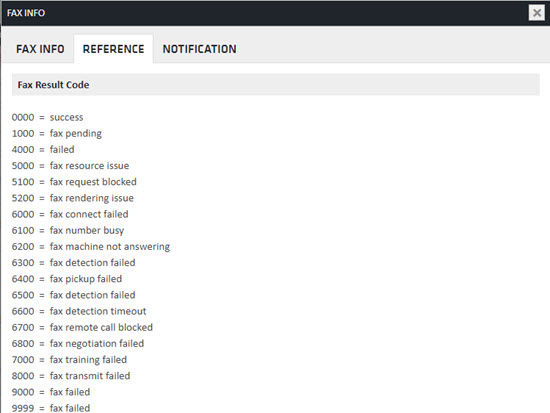
8. More Info - Reference - This section displays all of the fax result codes and their meaning. This is used mainly for troubleshooting purposes
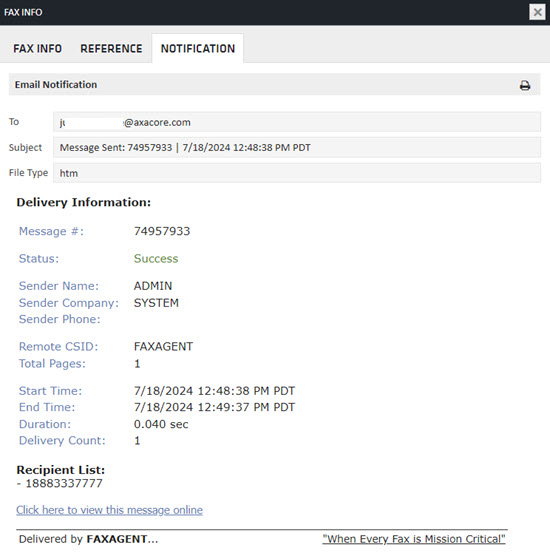
9. More Info - Notification - This section displays the fax confirmation notification that was emailed to the recipient. You can print this confirmation from the print icon at the upper right of the screen.