Cover Pages
Cover Page Grid
Cover Pages are pages with pre-defiend fields that are delivered as the first page of a fax. We have a default cover page you can use, or you can have Axacore Professiona Services create a customized cover page for your organization. The cover page grid is shown below.
Cover Page Actions
For cover pages, you can activte, deactivate, or delete a cover page.
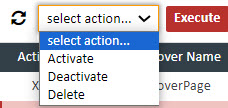
To perform any action:
- Select the row in the grid you want to perform the action on
- From the drop down menu, select the action you want
- Click Execute
Creating a Cover Page
It is wasy to create a custom fax cover sheet. Just follow the insructions below.
- From the Cover Page Grid, click CREATE. The cover page dialog will appear.
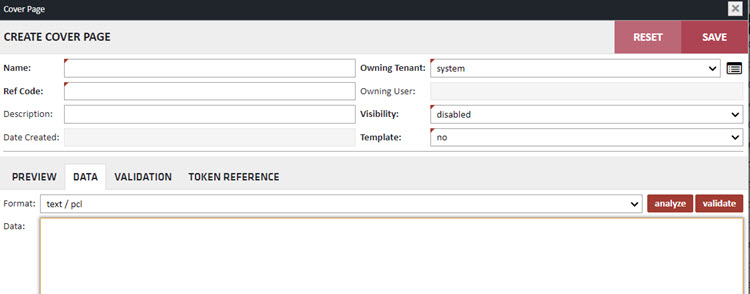
- Fill in the following fields. . Fields in BOLD are required
Field Description Name The name of the cover page Ref Code Additional naming for the cover page Description Added descriptive infomration for the cover page Owning Tenant The tenant using this cover page Owning User Not used at this time Visibility Choose "public" to make this cover page active. Template Reserved for future use. - From the "Forat" drop-down, choose the format for the cover page. Either "text/pcl" or "fxc."
- Add your cover sheet information in the "Data" field. You can use the information from the existing cover sheets by using the copy/paste functions. You can also use tokenated information from the "Token Reference" tab.
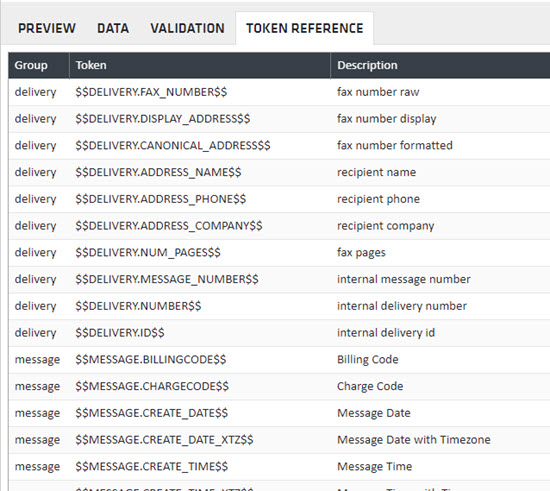
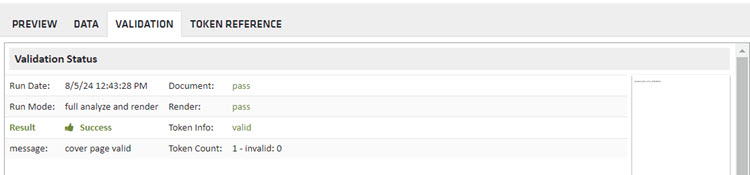
- Once you've finished adding all of your data, click the "validate" button to validate the data format before saving. A successful validate will result in the screen shot below. (Clicking "analyze" does the same thing without valiating the rendering, but all cover sheet must pass validation before they can be daved)
- Click SAVE to save this cover page
- After you click save, you will be directed to the Preview tab to see a preview of the data in the cover sheet